
Building an event page or a quick site on Canva has never been easier! If you are a loyal follower of my blog, you may remember my post, How to Embed a Google Form in a Canva Website. With Canva's latest updates (as of Sept. 2026), you can now embed custom forms directly within Canva. No external apps or subscriptions required!
Adding a functional RSVP form to your Canva site only takes a few minutes using their built=in features, and responses can be managed all within your Canva account.
What's stopping you? Here is the step-by-step workflow to get it set up and customized for your event.
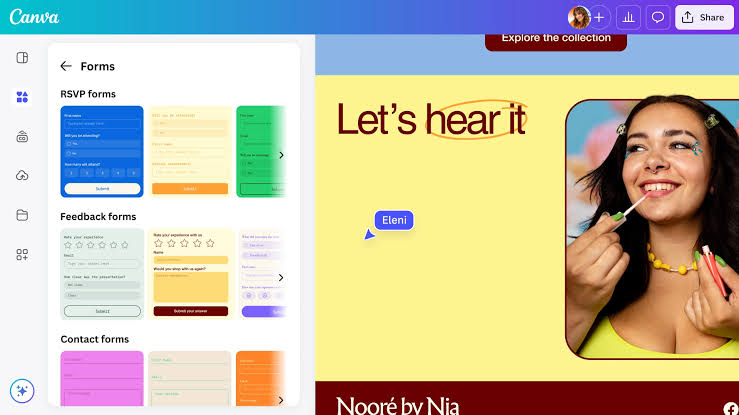
1. Navigate to Elements: Locate the left-hand toolbar in your Canva website project. Open your Canva website design. On the far-left sidebar, click on the Elements tab. This panel houses all your visual assets, graphics, and interactive widgets.
2. Find the Forms Section: Scroll or search within the Elements panel. Scroll down through the Elements menu until you locate Forms. Alternatively, type Forms directly into the top search bar within the Elements tab to bring up the form library.
3. Select a Contact Form Template: Choose a base layout to convert into an RSVP. Browse the available templates under the Contact Form category. Select a clean, multi-field contact form element that matches your general questions. Don't worry about this too much because everything is able to be changed. Click on the form to insert into your page.
4. Edit and Customize Fields: Click directly on the inserted form component and select Edit in the top tool bar to open the editor:
Just like that, you've got a customized RSVP ready to send out to your guests. Happy web designing!